
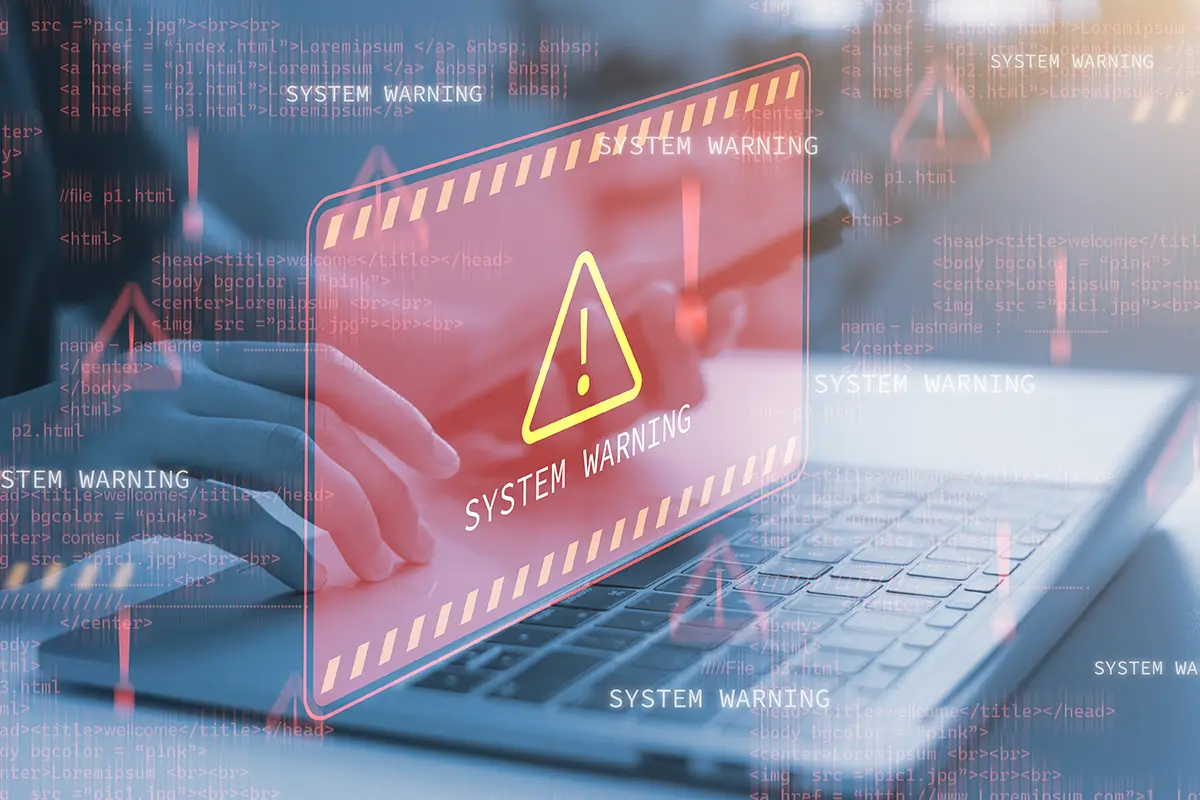
You’re browsing the internet, reading an article, checking email, or maybe shopping online when suddenly your screen fills with a warning. A bright red message appears claiming your computer is infected with viruses. Sometimes the message flashes or locks the screen. In some cases, a loud alarm sound starts playing to make the situation feel even more serious.
Then comes the instruction: Call this number immediately for technical support. For many people, the first reaction is panic. That reaction is exactly what scammers are hoping for.
Fake tech support pop-ups and security alerts are one of the most common online scams today. They are designed to create urgency, make the situation feel dangerous, and push someone into acting quickly before they have time to question what they are seeing. Once you understand how these scams work, it becomes much easier to recognize them and avoid the trap.
What These Pop-Ups Actually Are
Malicious ads or unsafe websites usually trigger fake security alerts. When the page loads, it launches pop-ups that are designed to look like official system warnings.
Many of these alerts copy the appearance of trusted companies. You may see logos from Microsoft, Apple, Windows Security, McAfee, or other well-known anti-virus providers. The message will usually claim something serious is happening to your device.
Common warnings include messages like:
- Your computer has been locked due to suspicious activity.
- Your personal data is being stolen.
- Multiple viruses have been detected on your system.
- Do not shut down your computer.
Most of these pop-ups include a phone number labeled “technical support” or “security assistance.” The goal is to convince you that calling the number is the only way to fix the problem.
In reality, legitimate technology companies do not display pop-ups that instruct you to call a phone number for help. Scammers design those warnings to create fear and urgency.
What Happens If You Call the Number
When someone calls the number listed on the screen, the person who answers pretends to be a support technician. They often claim to represent companies like Microsoft, Apple, Windows Security, or a major electronics retailer’s tech support service.
The scammer usually asks the caller to download remote access software. Programs like AnyDesk or TeamViewer allow another person to view and control a computer remotely. These tools are legitimate when used for real technical support, but scammers use them to take control of a victim’s device.
Once connected, the scammer may run fake diagnostics or open system logs and claim they show signs of hacking or malware. To someone unfamiliar with those tools, the information can look convincing.
After creating enough concern, the scammer offers to fix the problem. They may sell a security package, a one-time repair service, or a lifetime protection plan. These services can cost anywhere from $200 to over $1,000.
In some cases, the scam goes further. Once the scammer has access to the computer, they may attempt to steal passwords, install malware, or search for financial information.
Fake Alerts That Target Your Finances
Some scams now imitate banking or financial security alerts. You might see a message claiming suspicious activity has been detected on your account. The pop-up may urge you to contact a fraud department immediately and include a phone number for assistance.
In some cases, the alert may even mention a specific financial institution. This makes the message feel more believable and increases the chance someone will respond. But always remember, financial institutions do not communicate through random browser pop-ups. If there is suspicious activity on an account, the financial institution will contact you directly or ask you to log in through your secure banking platform.
How to Close These Alerts Safely
If you encounter one of these warnings, the safest response is to avoid interacting with the pop-up entirely. Do not click buttons that say “scan now,” “remove virus,” or “fix the problem.” Those buttons can trigger downloads or redirect you to additional scam pages.
Instead, close your browser completely. If the page refuses to close, you can use your computer’s task manager to force quit the browser. Once the browser is closed, restart your computer and run your trusted anti-virus software to scan your system.
In most situations, the pop-up was never connected to your computer’s security at all. It was simply a scare tactic designed to make you react quickly.
Everyday Habits That Reduce Your Risk
There are a few simple habits that can help prevent these scams from appearing in the first place.
- Keep your browser and operating system updated so security protections stay current.
- Use reputable anti-virus software and allow it to perform regular scans.
- Be cautious when visiting unfamiliar websites and avoid clicking ads that claim your device is infected.
- Never give remote access to someone who contacted you unexpectedly. Legitimate companies do not cold-call customers and ask for control of their computers.
Pause First. Protect Yourself Next.
If a pop-up suddenly claims your computer is infected or locked, pause before reacting. These alerts rely on fear and urgency to make people act quickly. Closing the browser and stepping away for a moment often reveals the truth. Real security alerts come from software installed on your device, not from random websites or advertisements. Knowing that simple difference can prevent a stressful situation and stop a scam before it ever gets started.
